A finished PDF can still be awkward to review, print, or discuss when nobody can say, “look at page 14.” You usually do not need to rebuild the original Word, PowerPoint, or design file to fix that.
SuperTool’s Add Page Numbers to a PDF tool places vector page numbers directly on the document. The original pages stay sharp and searchable instead of being converted to images.
Choose which pages get numbered
You can number an entire PDF or only one section. To leave a cover unnumbered, start with PDF page 2 and choose “1” as the number shown on that page. You can also skip already-numbered front matter or add numbers to an appendix or combined document packet.
- Choose one PDF.
- Select the first and last PDF pages to number.
- Choose the starting number, label format, position, font, size, color, and margin.
- Review the automatically updated preview and download the finished PDF.
Use simple numbers or full page labels
Choose plain numbers such as “1,” a label such as “Page 1,” a total such as “1 of 24,” or the full “Page 1 of 24.” Place the number at the top or bottom, aligned left, center, or right. Helvetica, Times, and Courier are available for dependable PDF output.
Keep page numbers readable on light and dark pages
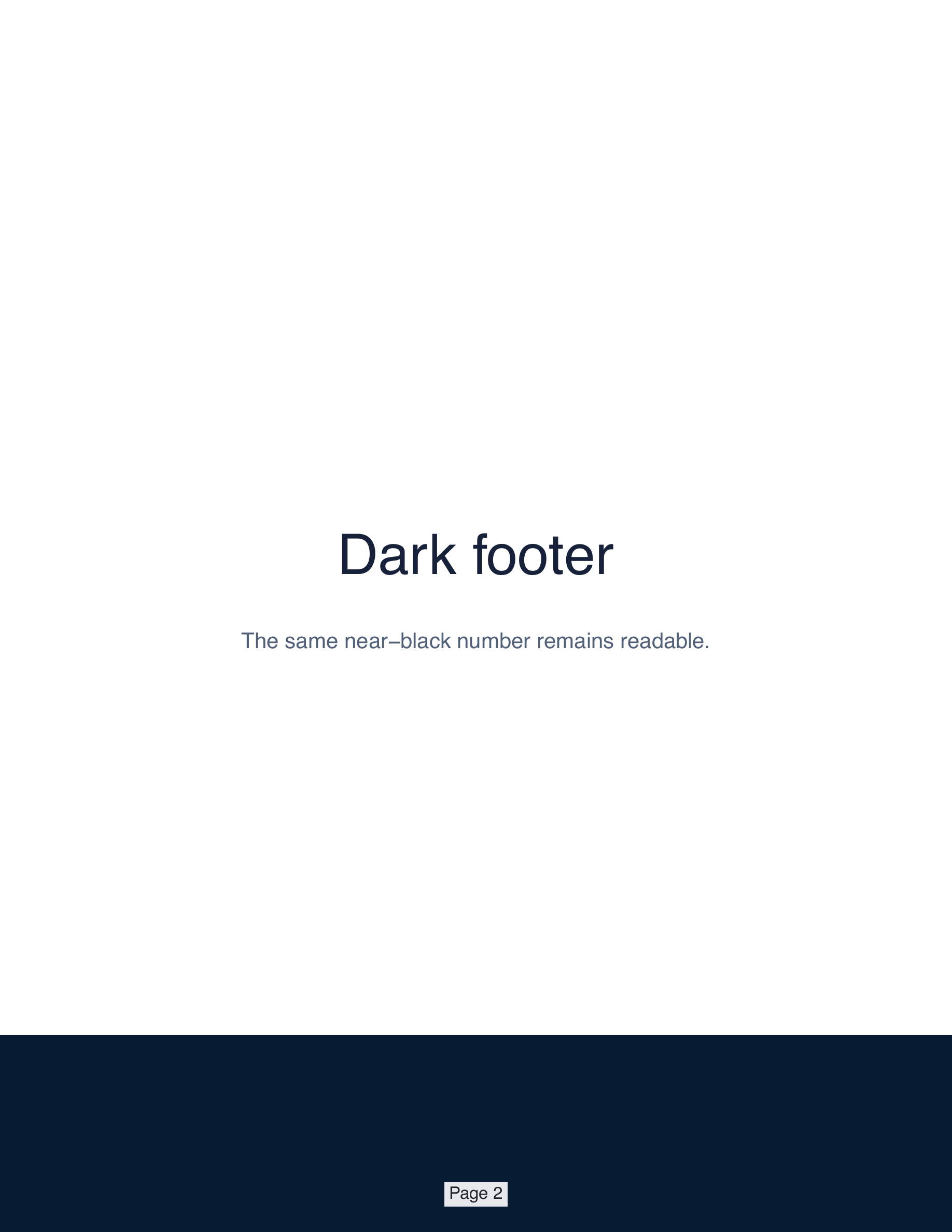
The default contrast backing adds a subtle translucent white area behind each page number. It is nearly invisible on white paper but keeps a dark number readable over a dark footer, photo, or scanned background. Turn it off when the document already provides a consistent clear area.
One free result shared across SuperTool
Previewing and changing the settings is free. SuperTool includes one free final result shared across its tools—not one per tool. If you have already used that allowance in another tool, sign in to your existing plan or choose a plan to download a new result here.
Your PDF is processed in temporary session storage on the SuperTool application host and is not sent to a specialist document processor. Password-protected PDFs should be unlocked before upload.
Related tools: merge PDF files, edit a PDF, or flatten a finished PDF.