PRESENTATION HANDOUTS
Print a PowerPoint PDF Without Dark Backgrounds
Slide decks are designed for screens and projectors. Your printed handout does not need to reproduce every dark theme and full-slide color field.
Best approach: export the presentation to PDF, process that PDF in PrintLight, and use the side-by-side preview to verify headings, bullets, charts, and photos.
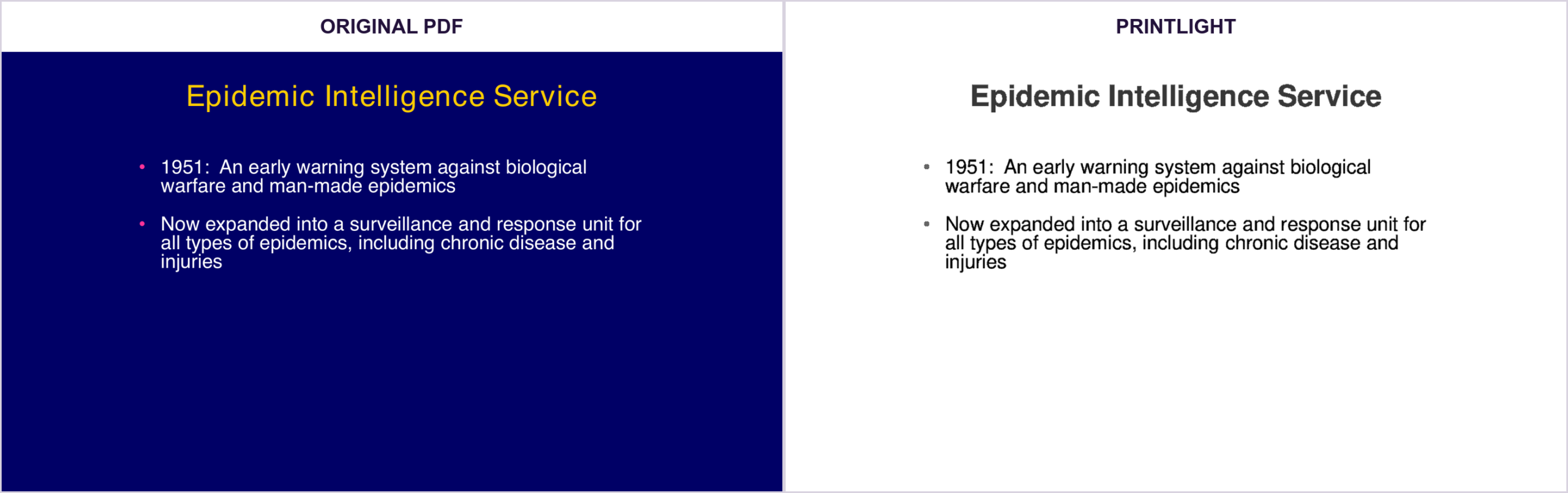
Example source: CDC Global Health Security Agenda/Ebola Grantee Meeting (2016), published in CDC STACKS and marked Public Domain. PrintLight output was produced from that PDF in the live app with automatic cleanup and “Omit large images” turned off.
Why presentation PDFs are hard on printers
Slides often use large navy, black, or brand-colored rectangles to create visual rhythm on a screen. When those slides become a course packet, board handout, or training manual, the same design becomes a printing cost. Choosing grayscale does not remove the coverage—it only changes the color of the coverage.
A print-copy workflow that keeps the original intact
Export once
Save the presentation as a PDF so fonts and layouts travel together.
Process the PDF
Let automatic cleanup lighten large panels while preserving text and vector content where possible.
Review exceptions
Check charts, screenshots, maps, and slides whose meaning depends on color.
Photos versus decorative backgrounds
Use “Omit large images” when the deck contains decorative photography you do not need in the handout. Turn it off when photos, screenshots, or maps carry meaning. In the CDC example above, we left the option off so the same batch could preserve useful image content on other slides.
When to return to PowerPoint instead
If you own the source file and need a fully redesigned handout, editing the presentation theme can give you more control. PrintLight is especially useful when you only have the PDF, need a print copy quickly, or have many decks built by different people.
Can I process several slide decks at once?
Yes. PrintLight accepts multiple PDFs and applies the same choices to the batch.
Will it keep speaker notes?
PrintLight works with the pages already present in the PDF. Export notes pages from PowerPoint first if you want them included.
Turn screen-first slides into a print copy
Upload one PDF or a whole batch, compare the original and lighter copy page by page, and download when the result works for you.
Try PrintLight PDF →