TRAINING AND OPERATIONS
Reduce Toner When Printing Training Manuals and Slide Decks
A 40-page training deck with heavy backgrounds can behave like hundreds of ordinary text pages. Make a separate print copy before the next workshop or onboarding session.
The practical fix: batch the manuals and slide exports together, use one set of PrintLight choices, inspect representative pages, and download the lighter files as a ZIP.
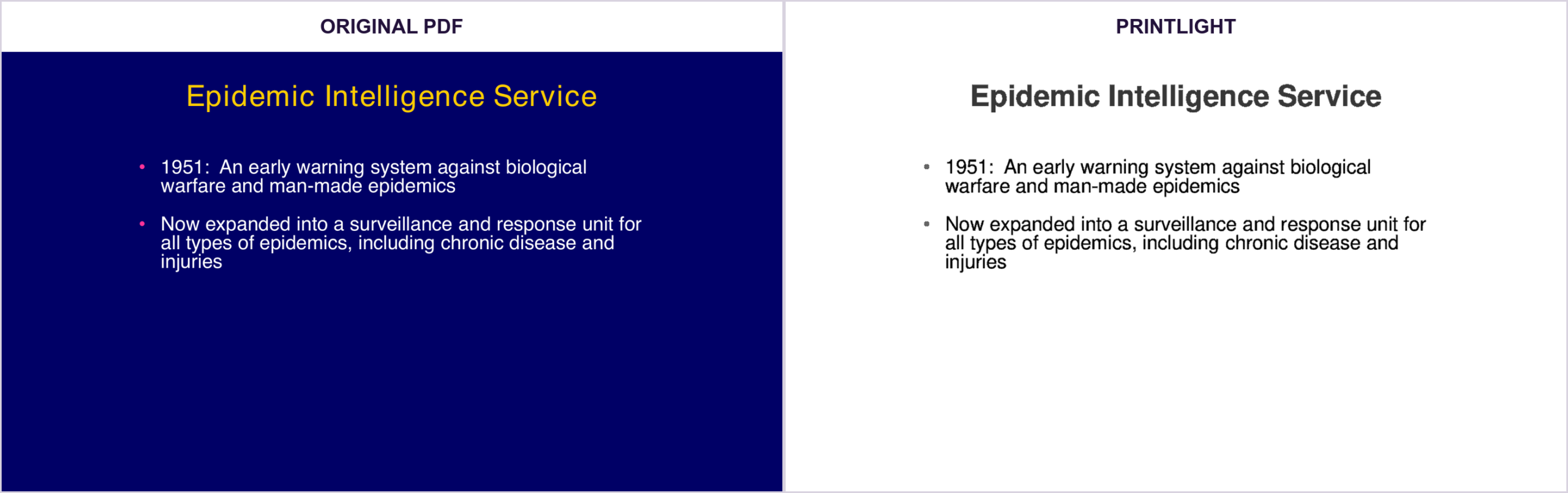
Example source: CDC Global Health Security Agenda/Ebola Grantee Meeting (2016), published in CDC STACKS and marked Public Domain. PrintLight output was produced from that PDF in the live app with automatic cleanup and “Omit large images” turned off.
Where the ink goes
Slide backgrounds
Full-page color fields dominate coverage even when the page contains only a title and a few bullets.
Decorative photos
Large images can be useful on screen but optional in a reference packet.
Colored panels
Callout boxes and section dividers repeat across many pages and add up quickly.
Build a reliable training-packet routine
- Keep the authored PDF as the source of truth.
- Create a PrintLight copy with a clear suffix so staff know which file is for printing.
- Review the title page, a text-heavy page, an image-heavy page, and any chart or map.
- Print a short test range before sending a large job to the copier.
For recurring training, the same workflow can be scoped as a shared-folder, email, scheduled batch, or application integration. That is useful when staff should not need to remember a manual conversion step for every packet.
Do not promise a percentage before testing. Toner use depends on the source pages, printer, driver, quality setting, and whether large images are kept. A real before/after and a short test print are more credible than a universal savings claim.
Training PDF FAQ
Can I keep diagrams and logos?
PrintLight protects small graphics and vector content where possible. Review the preview because source PDFs vary.
Can the same settings process a whole packet?
Yes. Upload several PDFs and process them together, then download the results as a batch.
Prepare the next packet with less heavy coverage
Upload one PDF or a whole batch, compare the original and lighter copy page by page, and download when the result works for you.
Try PrintLight PDF →