DARK PDF PRINTING
How to Print a Dark-Mode PDF Without a Black Background
A screen-friendly black page can drain a cartridge on paper. PrintLight can turn ink-heavy backgrounds white while keeping the information you need.
Fast answer: upload the PDF to PrintLight, leave automatic cleanup on, turn off “Omit large images” when a photo matters, and review the side-by-side preview before downloading.
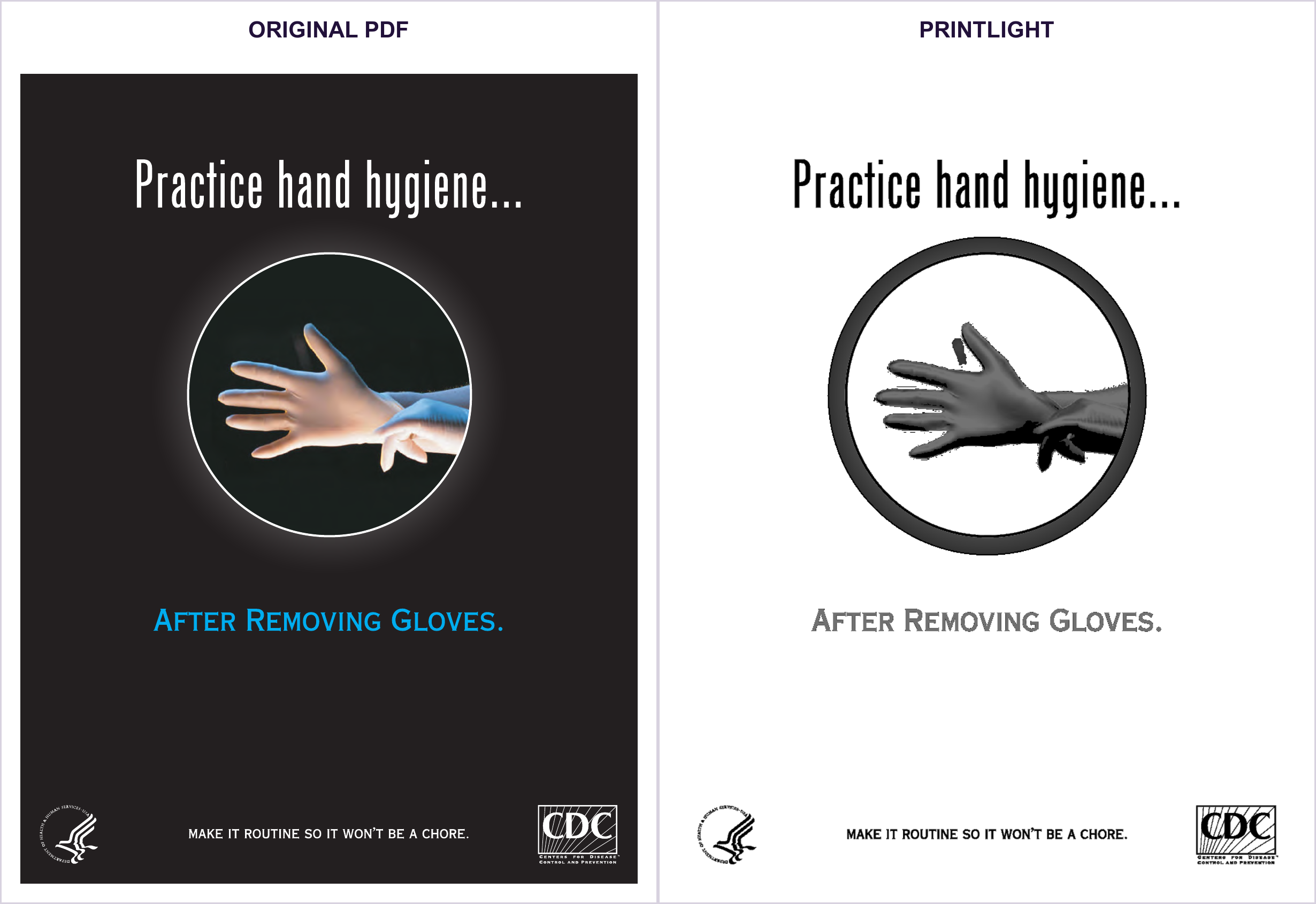
Example source: Practice hand hygiene…After removing gloves [dark background] (CDC, 2007), published in CDC STACKS and marked Public Domain. PrintLight output was produced from that PDF in the live app with automatic cleanup and “Omit large images” turned off.
Why grayscale is not enough
Printing a black-background PDF in grayscale still asks the printer to cover most of the page with toner. The color disappears, but the heavy fill remains. That is why a single presentation or handout designed for a projector can consume far more ink than its page count suggests.
PrintLight analyzes large filled areas separately from text, lines, logos, diagrams, and useful imagery. The goal is not simply “make everything gray.” It is to create a second copy intended for printing while leaving the original untouched.
Three steps to lighten a dark PDF
Add the PDF
Upload one file or several PDFs at once. Each file can be up to 250 MB.
Keep what matters
Turn off “Omit large images” when photos or full-page illustrations belong in the print copy.
Inspect the preview
Move through the pages and compare the original with the PrintLight result before downloading.
What to check before printing
- Confirm that light text from the original became dark enough to read.
- Look at logos, diagrams, and screenshots that rely on color contrast.
- Check image-heavy pages with “Omit large images” both on and off.
- Keep the original PDF as your screen copy; print the new file.
Honest limitation: every PDF is built differently. A background may be a vector rectangle, a flattened image, or part of a scan. Use the preview rather than assuming one setting is right for every page.
Dark PDF printing FAQ
Will a normal black-and-white print setting remove the black background?
Usually not. Grayscale changes hue, but a dark fill stays dark and still uses toner.
Does PrintLight overwrite my original?
No. It creates a new print-oriented PDF for you to download.
Can I keep photographs?
Yes. Turn off “Omit large images” when the photos are part of the information you need.
Make your PDF printer-friendly
Upload one PDF or a whole batch, compare the original and lighter copy page by page, and download when the result works for you.
Try PrintLight PDF →