“Make this PDF use less ink” sounds like one task, but there are several very different ways to do it. Grayscale, black-and-white conversion, white-threshold cleanup, panel lightening, and image removal solve different problems—and the wrong choice can make a document harder to read.
Here is a practical guide to choosing the least destructive method that gets the result you want.
Quick comparison
| Method | Best for | Main risk |
|---|---|---|
| Grayscale | Removing color while keeping tones | Gray backgrounds still print |
| Black and white | Simple text scans with strong contrast | Faint detail and smooth edges can disappear |
| Paper whitening | Gray or yellow scanned paper | High settings can erase pale marks |
| Panel lightening | Dark banners and colored boxes | Poor detection may affect nearby design elements |
| Image omission | Optional photos and cover art | Essential visual information may be removed |
1. Grayscale conversion
Grayscale removes color but preserves brightness differences. A blue chart becomes shades of gray, and a yellow scan background becomes light gray.
Use it when: color itself is unnecessary, but photographs, shaded tables, or diagrams still need tonal detail.
Do not expect: major toner savings from a dirty background. Grayscale changes the color of those pixels; it does not make them white.
2. Hard black-and-white conversion
A black-and-white threshold assigns every pixel to black or white. It can produce a very clean text page when the original has strong contrast.
Use it when: the document is almost entirely dark text on light paper and subtle tones do not matter.
Watch for: broken thin lines, rough letter edges, missing pencil notes, lost highlights, and dark shadows turning into solid black areas.
3. Paper-background whitening
Paper whitening is a more targeted approach. It turns near-white pixels into pure white while leaving darker content alone. Color-aware protection can also avoid treating saturated highlights as paper.
Use it when: an invoice, worksheet, score, or archival scan has a consistent gray, cream, or yellow cast.
Best practice: start low and raise the setting while comparing the original and cleaned page. The upper end of the range is useful for heavy staining but should be treated as an aggressive recovery mode.
See the detailed guide to making a scanned PDF background white without losing the text.
4. Dark-panel lightening
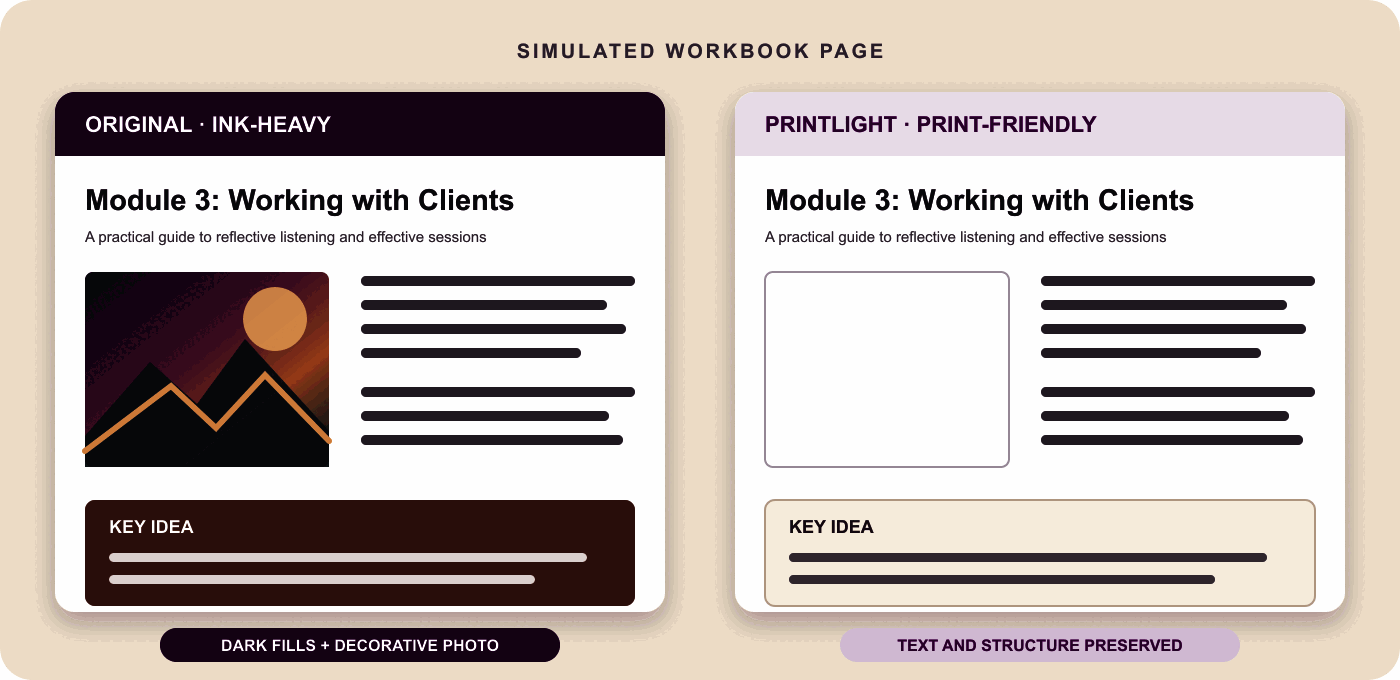
Modern reports and workbooks often use white lettering inside dark rectangles. Converting the whole page to black and white does not solve the underlying problem; the rectangle can remain a large black block.
A panel-aware method identifies the solid fill, turns it white, and changes the enclosed lettering to dark gray or black.
Use it when: the document contains repeated chapter banners, callout boxes, dark headers, or colored sidebars.
5. Large-image omission
Photos and decorative cover art can account for most of a page’s ink. If they are not needed in the working copy, replacing them with white space and a subtle outline can save substantially more ink than color conversion alone.
Use it when: the image is decorative or is already available in the original digital file.
Keep the image when: it is a chart, diagram, map, evidence photo, example, or part of the instructions.
The best answer is often a combination
A scanned workbook may need paper whitening on every page, panel lightening on chapter dividers, and image omission only for large decorative photos. That is why one global filter is rarely ideal.
A sensible order is:
- preserve the original;
- remove optional large images;
- lighten detected dark panels;
- whiten the remaining paper background;
- preview representative pages;
- create a separate print copy.
Use the gentlest effective setting
If the document is important, preservation should win every close call. Use lower settings for handwriting, signatures, musical scores, legal exhibits, medical records, and diagrams with subtle colors.
For more general tips, read the seven-step guide to saving ink when printing PDFs.
Try the methods side by side
PrintLight PDF separates these decisions into individual controls. You can preview the original and print-friendly version for any page, adjust paper whitening from 0 to 100%, lighten dark panels, and choose whether large raster images should remain.
The best cleanup method is the one that removes page coverage—not meaning.