Old scans often look fine on a screen but print like a sheet of gray or yellow construction paper. The printer tries to reproduce every bit of background discoloration, using toner across almost the entire page.
The useful goal is not to turn the document into harsh black and white. It is to make the paper background white while preserving the text, handwriting, lines, and highlights that matter.
Why scanned PDFs waste so much ink
A scanner or phone camera rarely records paper as pure white. Warm lighting can make it yellow, shadows can make it gray, and aging paper can add stains. Those pixels become part of the page image. When printed, even a seemingly light background can cause the printer to lay down ink or toner over a large area.
This is especially noticeable with worksheets, sheet music, invoices, archival records, photocopies, and course packets.
The safest cleanup method: raise the white level gradually
A white-level or paper-whitening adjustment turns pixels that are close to white into pure white. Unlike a simple black-and-white conversion, it does not automatically force every pixel into one of two colors.
- Start at zero. Keep the original visible in a side-by-side preview.
- Raise the paper-whitening setting slowly. Stop when the background becomes clean white.
- Inspect faint content. Check pencil notes, light gray rules, musical notation, signatures, and pale highlights.
- Test one representative page. A cover, photo-heavy page, or lightly printed appendix can behave differently from the rest of the document.
- Keep the original PDF. Use the cleaned copy for printing.
Why “more” is not always better
A strong setting can rescue a dark or badly yellowed scan, but it can also erase details whose brightness resembles the paper. Faint pencil marks and gray text are the first things to check. Near-black printed text usually survives much stronger cleanup.
Color-aware protection helps because a yellow highlighter mark is different from a slightly yellow sheet of paper. Even so, no automatic method can perfectly distinguish every meaningful pale mark from background discoloration. Previewing remains essential.
What if the page has uneven shadows?
A single global adjustment works best when the paper color is fairly consistent. Phone photos may have a dark edge, page curl, or a shadow near the binding. In those cases, crop and straighten the page first if possible. Then use the lowest whitening level that produces an acceptable result.
Very aggressive black-and-white thresholding can handle extreme shadows, but it often produces jagged letters and removes subtle detail. For documents you intend to read, annotate, or archive, a gradual white-level adjustment is usually the better first step.
Clean the background and the other ink-heavy elements separately
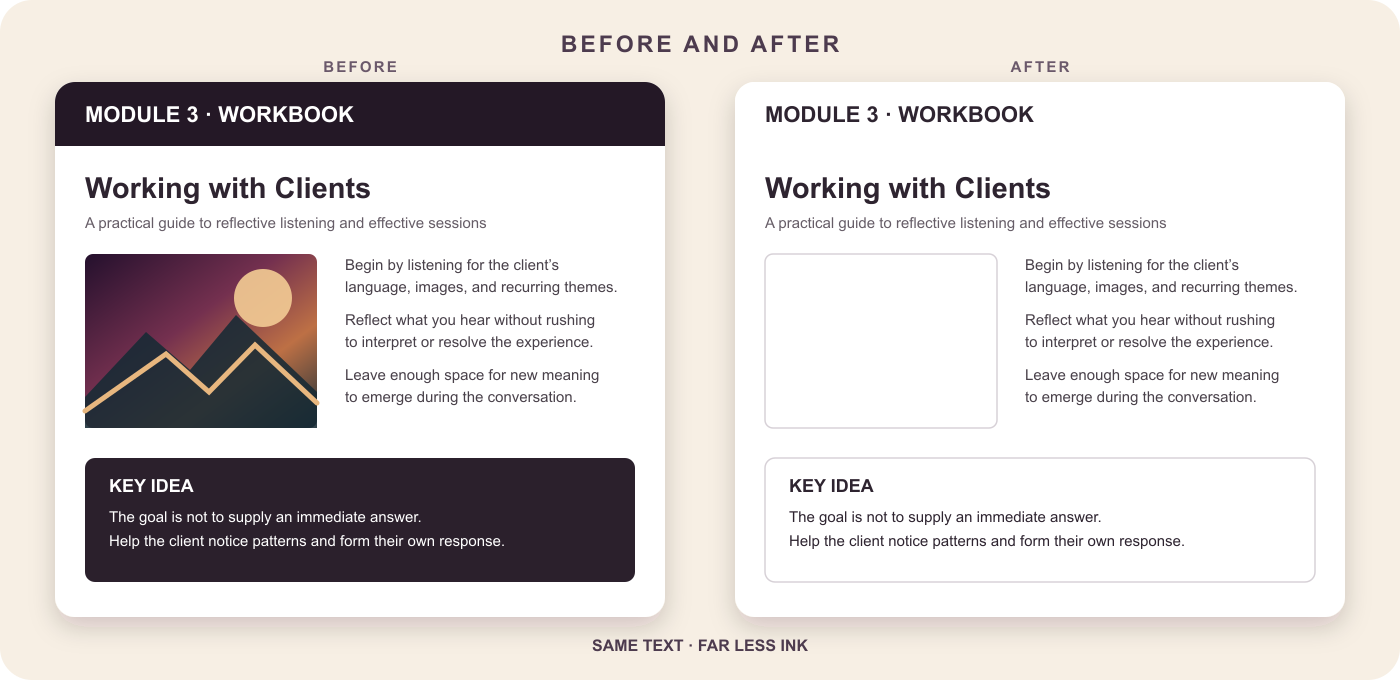
Background discoloration is only one source of ink use. A workbook may also include dark section banners, full-page photos, colored sidebars, and decorative cover art. Treating each type separately gives a better result than applying one destructive filter to the whole page.
- Paper whitening handles gray or yellow scanned paper.
- Panel lightening removes dark fills while keeping the words inside them.
- Image omission can replace large photos with a light outline.
- Output quality balances legibility, file size, and processing time.
A quick way to do it
PrintLight PDF is designed for this exact workflow. Upload one PDF or a batch, open Advanced settings, and raise Paper background whitening while watching the automatic before-and-after preview. The control runs from 0 to 100%, stays off by default, and clearly marks the more aggressive range.
PrintLight can also lighten colored panels and omit large raster images, so you can prepare a practical print copy without manually editing every page.
Final checklist before printing
- The paper background is white.
- Small text is still crisp.
- Faint notes and signatures remain visible.
- Important highlights and diagrams are preserved.
- The cleaned file is saved as a separate print copy.
The best result is not the whitest possible page. It is the lightest page that still contains everything you need.