For a more consistent product grid
Make your product
photos match.
Different backgrounds and crops? Give your product photos a white backdrop, matching square dimensions and consistent framing.
In the tool, choose White + Standardize size. Use Social square (1080 px, 80%) to match the demo.
Uses SuperTool Background Remover. Existing download limits and plans apply.
Tool not loading?
Open Background Remover in a separate tab, then select the settings above.
Same canvas. Consistent framing.
Two different photos, exported on white at 1080 × 1080 pixels.
Before
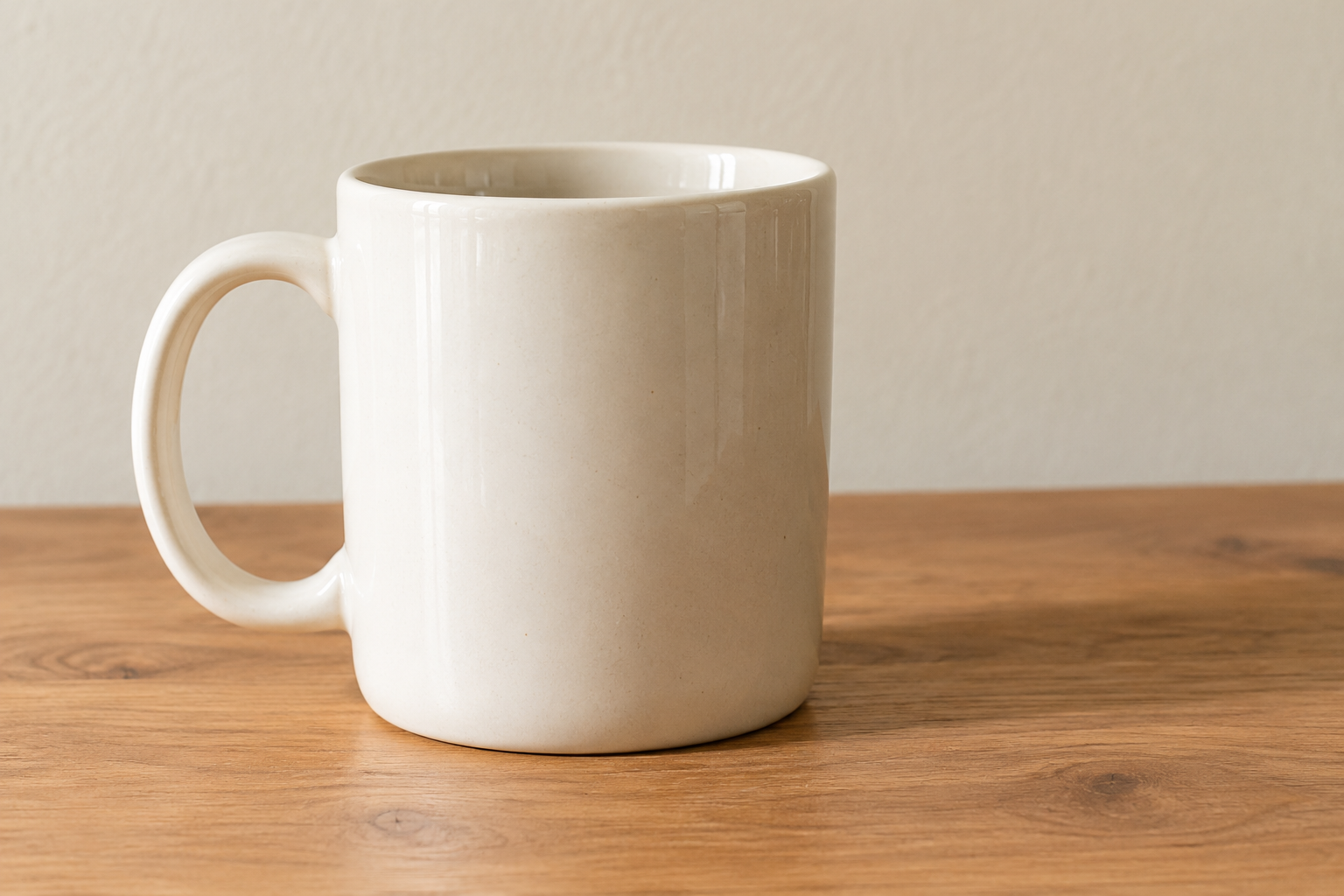
After

Before
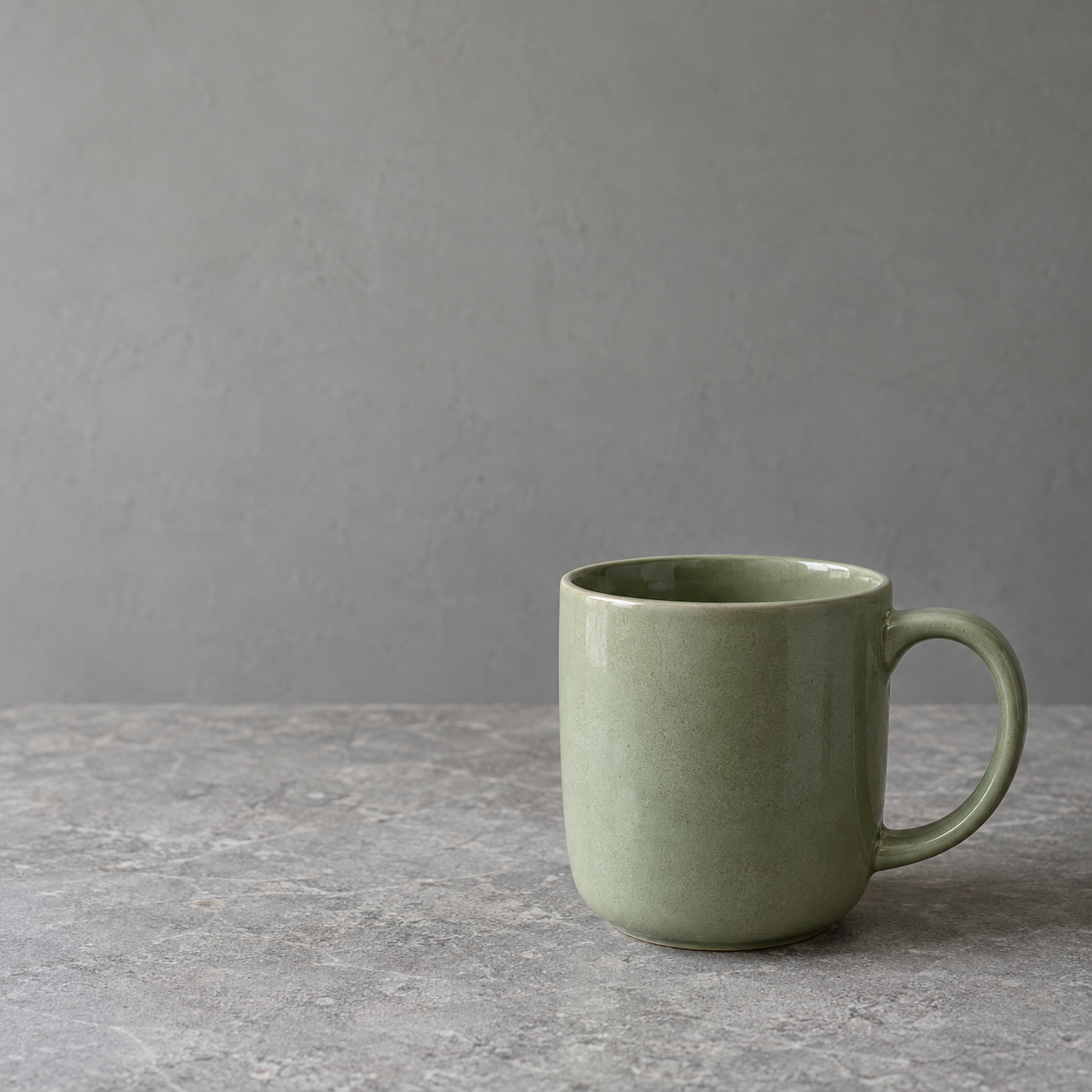
After

One consistent setup for the set
1. Upload your photos
Start with clear JPG or PNG photos where the whole product is visible. Use images you have permission to upload.
2. Match the framing
Choose White and Standardize size. Pick the same square canvas and subject percentage for the whole batch. The demo uses 1080 px and 80%.
3. Check, then export
Inspect every product edge, handle and opening before downloading your PNGs. Keep only the results that represent your product accurately.
Before you upload
Does this set the options automatically?
Select White, Standardize size and your canvas preset inside the tool. This page shows a product-photo workflow using the existing Background Remover.
Will this make every photo look identical?
It can match the background, canvas dimensions and relative framing. The original product, lighting, angle and image quality still matter. Always inspect the result.
Are these guaranteed marketplace-ready images?
Check your marketplace’s current image requirements and review the full-size export before listing it. Matching dimensions and a white background do not guarantee compliance.
Where are my photos processed?
Your images are uploaded to SuperTool for processing. Use product photos you have permission to upload and check the result before downloading.