Combine CSV and Excel Files
Stack rows or add columns by matching an ID. Choose Excel worksheets, review your table, and save one CSV.
One table from monthly exports
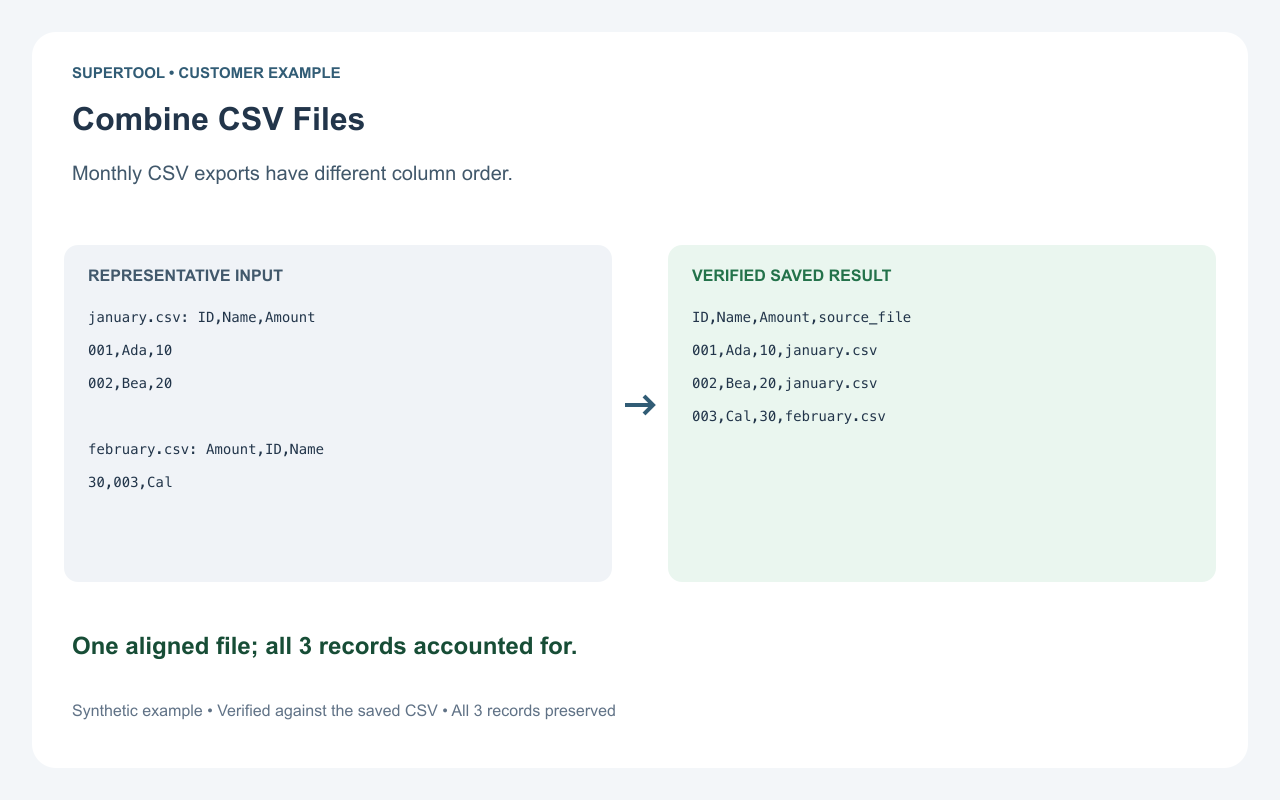
January has two records in ID, Name, Amount order. February has one in Amount, ID, Name order. Map the matching columns and save all three records in one table. IDs stay 001, 002 and 003; an optional source-file column records where each row came from.
| ID | Name | Amount | source_file |
|---|---|---|---|
| 001 | Ada | 10 | january.csv |
| 002 | Bea | 20 | january.csv |
| 003 | Cal | 30 | february.csv |
Which way should I combine my files?
Stack rows when each file contains more records with the same kinds of fields: January’s 2 orders plus February’s 1 order become 3 orders. Add columns by matching an ID when another file has details about the records you already have, such as customer names for your orders.
How to combine your files
- Choose Stack rows (2–20 files) or Add columns by matching an ID (exactly two files). Upload CSV or Excel files. Select one visible worksheet per workbook; confirm delimiter and encoding for text exports. TSV is also supported.
- For stacking, review file order and field mappings. For matching, choose the main table whose rows you want to keep and one ID column in each file. Review output names and optional source details.
- Check the preview and row or match totals, confirm the table, then download your combined CSV.
Stack rows, with fields aligned
January has 2 records and February has 1: the combined table has all 3. Columns with the same reviewed target name line up; missing fields stay empty.
Stacked records follow the reviewed file order and their original order within each file. Missing columns produce empty fields. Duplicate records and header-like data records stay in the result.
Add columns by matching an ID
Keep all rows in a main orders file and bring in names from a customer lookup. Main IDs 001, 002 and 003 have amounts 10, 20 and 30. The lookup contains 001 → Ada, 002 → Bea and 004 → Dee.
| Customer ID | Amount | Name |
|---|---|---|
| 001 | 10 | Ada |
| 002 | 20 | Bea |
| 003 | 30 |
003 stays with a blank name. Lookup-only 004 is counted but is not added as a row. Repeated main IDs keep all their rows. Matching never multiplies the main rows.
IDs match as exact text, including spaces, case and leading zeros. Blank main IDs never match. Lookup IDs must be filled and unique; duplicate or blank lookup IDs stop review so you can fix the source. Repeated output field names get a _lookup suffix that you can rename. Optional source file and worksheet fields show where values came from; lookup details stay blank on unmatched rows.
Text values, spaces, long identifiers and multiline fields are preserved. Spreadsheet software can interpret CSV values when opening a file. Review the literal-export notice and use text import options where needed. CSV quoting does not prevent formula evaluation.
Common questions
Which exports can I combine?
Stack two to twenty CSV, Excel (.xlsx) or TSV files, or match exactly two files by an ID. For each workbook choose one visible sheet, with unique field names on row 1 starting at column A and plain values below. For text files choose UTF-8 or Windows-1252 and comma, tab, semicolon or pipe separators. The result is one CSV.
How are Excel values imported?
The tool reads stored cell values without Excel formatting or formula calculation. A numeric 1 displayed as 001 imports as 1; formatted dates may import as serial numbers. Store IDs and dates as text when the exact display matters. Export formulas, merged cells or error cells as a plain-values table before uploading. Check the preview before saving.
What are the limits?
The combined upload limit is 50 MiB. A job supports up to 100,000 data rows, 200 output columns and one million cells, including the output header and optional source columns. Each workbook is limited to 50,000 data rows and 500,000 rectangular cells. Each text value is limited to 1 MiB. Processing stops if any limit is exceeded.
Will identifiers keep their leading zeros?
The saved CSV preserves text values such as 001. Excel numeric display formats are not text values; format those identifiers as text in the input when needed. When opening it in spreadsheet software, import identifier columns as text to keep the same display. Formula-like text requires explicit acknowledgement before export.
Access and privacy
Preview and review are free. Generate one validated result without an account. Further new results use your SuperTool account and plan. Downloading the same completed result again does not use another result.
Selected files upload to SuperTool for processing in a temporary session workspace. This tool does not import from connected drives or send file contents to an external document-processing API.
More data tools
Check CSV files before importing, or Explore all SuperTool tools