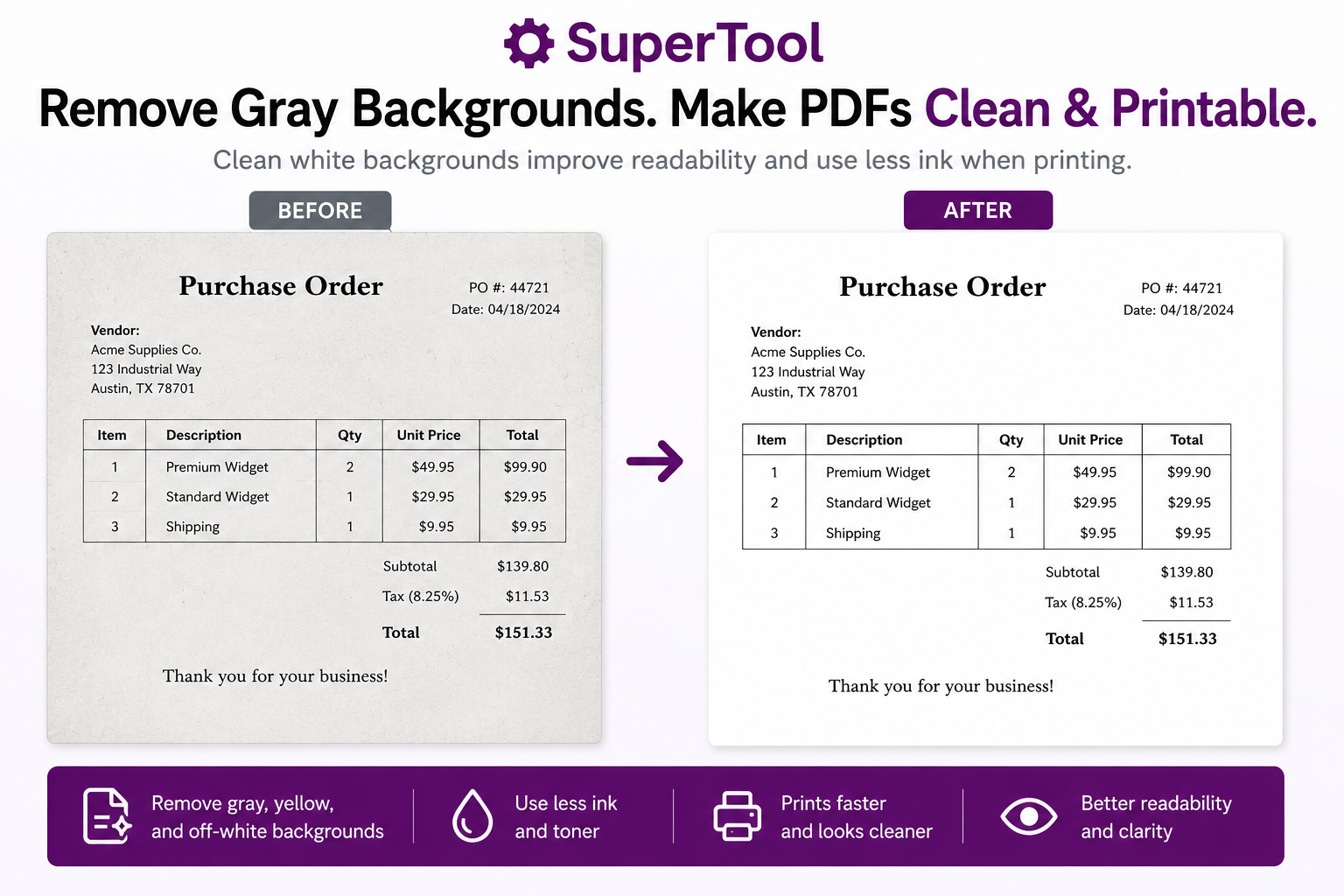
Scanned PDFs often look worse than the original document. Instead of a clean white page, the background may appear gray, yellow, beige, or slightly dirty. While this may seem like a minor issue, it can make documents harder to read, waste printer ink, and create poor-quality printouts.
Fortunately, you can often remove unwanted background shading and restore a cleaner appearance in just a few seconds.
Why Does My PDF Have a Gray Background?
Many PDFs are created from scans of physical documents. During scanning, the scanner captures more than just the text:
- Paper texture
- Shadows from folds or creases
- Yellowing from aging paper
- Dust and scanner artifacts
- Light discoloration from photocopies
As a result, areas that should be pure white become light gray or off-white.
This is especially common with:
- School worksheets
- Legal documents
- Contracts
- Medical records
- Historical documents
- Government forms
- Photocopied paperwork
Why Remove the Gray Background?
A cleaner background provides several benefits.
Improved Readability
Dark text stands out more clearly against a white background. This can reduce eye strain and make documents easier to review.
Better Printing
Many printers reproduce light gray backgrounds even when they seem insignificant on screen. Removing those background pixels often produces cleaner-looking printouts.
Reduced Ink and Toner Usage
Gray backgrounds contain thousands or even millions of pixels that your printer may attempt to reproduce. Cleaning those backgrounds can significantly reduce toner and ink consumption.
Cleaner Copies and Scans
Documents often degrade after multiple rounds of scanning and copying. Removing background shading can help restore a more professional appearance.
How to Remove Gray Backgrounds from a PDF
One approach is to use a PDF editor and manually adjust each page. However, that can be time-consuming and often requires expensive software.
A simpler option is to use a PDF cleanup tool that automatically brightens the page background while preserving text and graphics. The SuperTool PDF Color Changer includes a Clean White slider that can remove gray, yellow, and off-white backgrounds in seconds.
The process is typically:
- Upload the PDF.
- Preview the document.
- Increase the background-cleaning or “Clean White” setting.
- Review the results.
- Download the cleaned PDF.
The goal is to make the page background white while keeping text readable and sharp.
Can I Remove Yellow Backgrounds Too?
Yes.
Many older documents develop a yellow or beige appearance over time. Scanned copies of those documents often preserve that discoloration.
Cleaning the background can make old documents appear much closer to a modern digital original.
Common examples include:
- Old records
- Archived documents
- Library materials
- Historical forms
- Estate and legal paperwork
Can This Make a Scanned PDF Look More Professional?
In many cases, yes.
Removing unwanted background shading can make a document look:
- Cleaner
- More modern
- Easier to read
- Easier to print
- Better suited for sharing electronically
While it won’t recreate the original digital file, it can dramatically improve the appearance of many scanned documents.
What Types of PDFs Benefit Most?
The biggest improvements are often seen in:
- Black-and-white scans
- Photocopied documents
- Classroom handouts
- Contracts and agreements
- Government forms
- Receipts
- Court filings
- Instruction manuals
- Medical paperwork
Bonus: Change PDF Colors at the Same Time
Some PDF tools allow you to clean the background and change colors simultaneously.
For example, if your printer is out of black ink, you can:
- Remove the gray background
- Convert black text to dark blue
- Print using color ink instead of black ink
This can be particularly useful for shipping labels, forms, homework assignments, and other urgent documents.
Try It Yourself
If your PDF has a gray, yellow, or dirty-looking background, try cleaning it before printing. A cleaner background can improve readability, reduce ink usage, and make scanned documents look dramatically better.
Using the PDF Color Changer, click “Recolor Parts of a PDF”, switch to Greyscale, and adjust the Clean White slider until the background looks right. Note that clicking Reverse can change a mostly black to a mostly white document and vice-versa. Preview the results and download your cleaned PDF in seconds.