Sometimes a PDF is technically readable, but practically impossible to use.
The text may be too light, the background may be too dark, or the document may have been scanned with poor contrast. In other cases, you may simply want to reverse the colors to create a cleaner version for reading, printing, or annotation.
Fortunately, it’s possible to invert PDF colors in just a few seconds.
What Does It Mean to Invert PDF Colors?
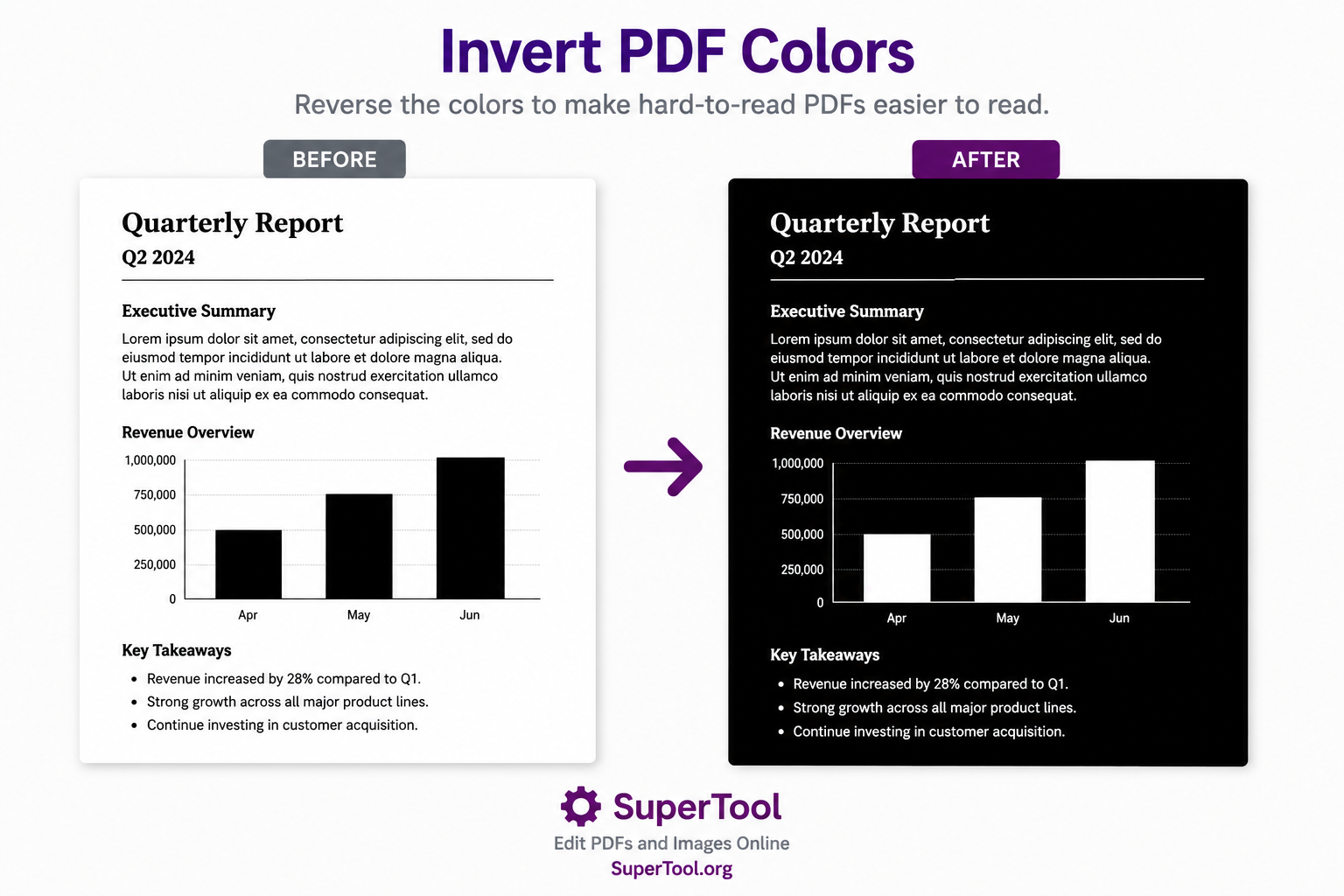
Inverting colors means reversing the colors in a document.
For example:
- Black text becomes white
- White backgrounds become black
- Dark gray becomes light gray
- Light colors become dark colors
This is sometimes called:
- Reverse PDF colors
- Negative PDF
- PDF negative
- Reverse black and white PDF
- Invert scanned document
The result is a document with the opposite color scheme of the original.
Why Would You Invert a PDF?
There are several reasons people reverse PDF colors.
Improve Readability
Some scanned documents have poor contrast. Reversing the colors can make text stand out more clearly.
Create a Dark Mode Version
Many people prefer reading white text on a dark background, especially when viewing long documents on a screen.
Fix Difficult Scans
Some scanned documents contain faded text or unusual color combinations. Inverting the colors can make details easier to see.
Save a Large Print Job
Occasionally a PDF contains a dark background that consumes excessive ink or toner. Reversing the colors may create a more practical version for printing.
Accessibility and Visual Comfort
Some users find certain documents easier to read when the contrast is reversed.
Common Documents That Benefit from Color Inversion
You may want to invert colors in:
- Research papers
- Books and manuals
- Technical documentation
- Engineering drawings
- Historical scans
- Classroom handouts
- Court documents
- Contracts
- Medical records
- Photocopied documents
How to Invert PDF Colors
Using the PDF Color Editor is simple:
- Upload your PDF.
- Click Recolor Parts of a PDF.
- If desired, switch to Greyscale mode.
- Enable the Reverse option (click the checkbox on the lower left panel).
- Preview the results.
- Download the modified PDF.
The tool processes the entire document while preserving the layout and formatting.
Invert Colors vs. Clean White Mode
Not every PDF needs full color inversion.
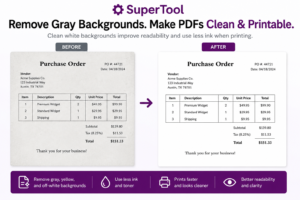
If your document has a gray, yellow, or dirty-looking background, the Clean White slider may produce a better result.
Use Reverse When:
- The document has poor contrast.
- Dark areas overwhelm the page.
- You want a dark-mode version.
- You want to create a negative image.
Use Clean White When:
- The background is gray or yellow.
- The scan looks dirty.
- You want a cleaner printed document.
- You want to reduce toner or ink usage.
Many users experiment with both options to find the most readable version.
Can I Invert Colors and Change Colors at the Same Time?
Yes.
After reversing the document, you can also change colors.
For example:
- Convert black text to blue.
- Replace dark areas with another color.
- Create custom color schemes for printing.
- Produce documents that work around printer ink issues.
This can be particularly useful if your printer is out of black ink but still has color ink available.
Will Inverting Colors Affect Printing?
It can.
Before printing, review the preview carefully.
Some documents become significantly easier to print after color inversion, while others work better with the Clean White feature instead.
The best choice depends on the specific document and printer.
Frequently Asked Questions
Can I invert PDF colors online?
Yes. You can upload a PDF, reverse the colors, preview the results, and download the modified version without installing software.
What is a PDF negative?
A PDF negative is simply a PDF with inverted colors. Black becomes white, white becomes black, and other colors are reversed.
Can I invert a scanned document?
Yes. Inverting colors often works particularly well for scanned documents that have poor contrast or unusual backgrounds.
Can I reverse black and white PDFs?
Yes. Black-and-white PDFs are often excellent candidates for color inversion because the transformation is simple and easy to preview.
Try It Yourself
If a PDF is difficult to read, has poor contrast, or would benefit from a reversed color scheme, try inverting the colors and comparing the results.
Using the PDF Color Editor, click Recolor Parts of a PDF, switch to Greyscale, enable Reverse, and preview the transformed document before downloading.