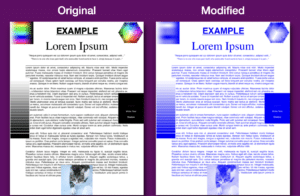
Sometimes an Excel workbook remains surprisingly large even after its ordinary photos and screenshots have been compressed. The culprit may be one or more .emf images embedded in the file.
SuperTool’s Excel File Size Reducer can now shrink certain image-heavy EMFs while preserving the workbook around them.
What is an EMF image?
EMF stands for Enhanced Metafile, an older Windows image format commonly created by programs such as Microsoft Paint and older versions of Office.
Although EMF supports vector graphics, some EMF files are really containers holding a large, uncompressed bitmap. A screenshot or Paint object stored this way can consume much more space than an equivalent JPEG.
How SuperTool compresses EMF images
An .xlsx file is a ZIP package containing the workbook’s sheets, formatting, relationships, images, and other components.
When SuperTool finds a supported bitmap-based EMF, it extracts the image inside it, compresses that image as a JPEG, and updates Excel’s internal reference to the new file. It does not rebuild the spreadsheet or export only its data.
This means the workbook can retain its:
- Sheets and cell data
- Formulas and formatting
- Layout and drawing positions
- Embedded objects
- Other workbook components
If the EMF contains genuine vector artwork or does not match a supported structure, SuperTool leaves it unchanged.
Test results
In one workbook containing multiple EMF preview images, the updated downsizer produced:
- A 61.3% file-size reduction at JPEG quality 50
The workbook’s five sheets, XML components, and embedded OLE objects were preserved. One unsupported EMF, image12.emf, was passed through unchanged—as intended—instead of risking damage to the file.
For embedded Paint objects, the tool changed the large EMF preview image but retained the underlying OLE object. In other words, the visual preview became smaller while the embedded object data remained in the workbook.
Will this work with every Excel file containing EMFs?
It will work when an EMF contains the supported bitmap pattern, which is commonly produced by Windows applications, older Office software, screen-capture workflows, and embedded Paint objects.
It will not compress every possible EMF. True vector drawings, text, charts, and unfamiliar EMF structures may remain at their original size. This is intentional: when the tool cannot confidently extract the underlying bitmap, it preserves the original file instead.
The amount saved will therefore depend on how the workbook and its images were created.
When this feature is most useful
EMF compression may help when:
- An Excel file contains pasted screenshots or Paint objects
- The workbook is much larger than its visible data would suggest
- Ordinary JPEG and PNG compression does not reduce it enough
- You need to preserve the workbook’s formatting and structure
- You cannot email or upload the file because of a size limit
Try the Excel File Size Reducer
Upload your workbook to the SuperTool Excel File Size Reducer and choose the image-compression option.
After downloading the smaller workbook, open it in Excel and spot-check the images, formulas, data, and any embedded objects before replacing your original file. Keeping the original as a backup is always recommended.