SCANNED PAPER CLEANUP
Clean Gray or Yellow Scanned PDF Backgrounds for Printing
Old paper, dim scanners, and uneven lighting can make every page carry a gray or yellow cast. PrintLight includes optional controls for making scanned paper cleaner.
Start with automatic cleanup. If the page still looks muddy, open Optional adjustments, turn on scan cleanup, and tune paper whitening, brightness, and black restoration while watching the preview.
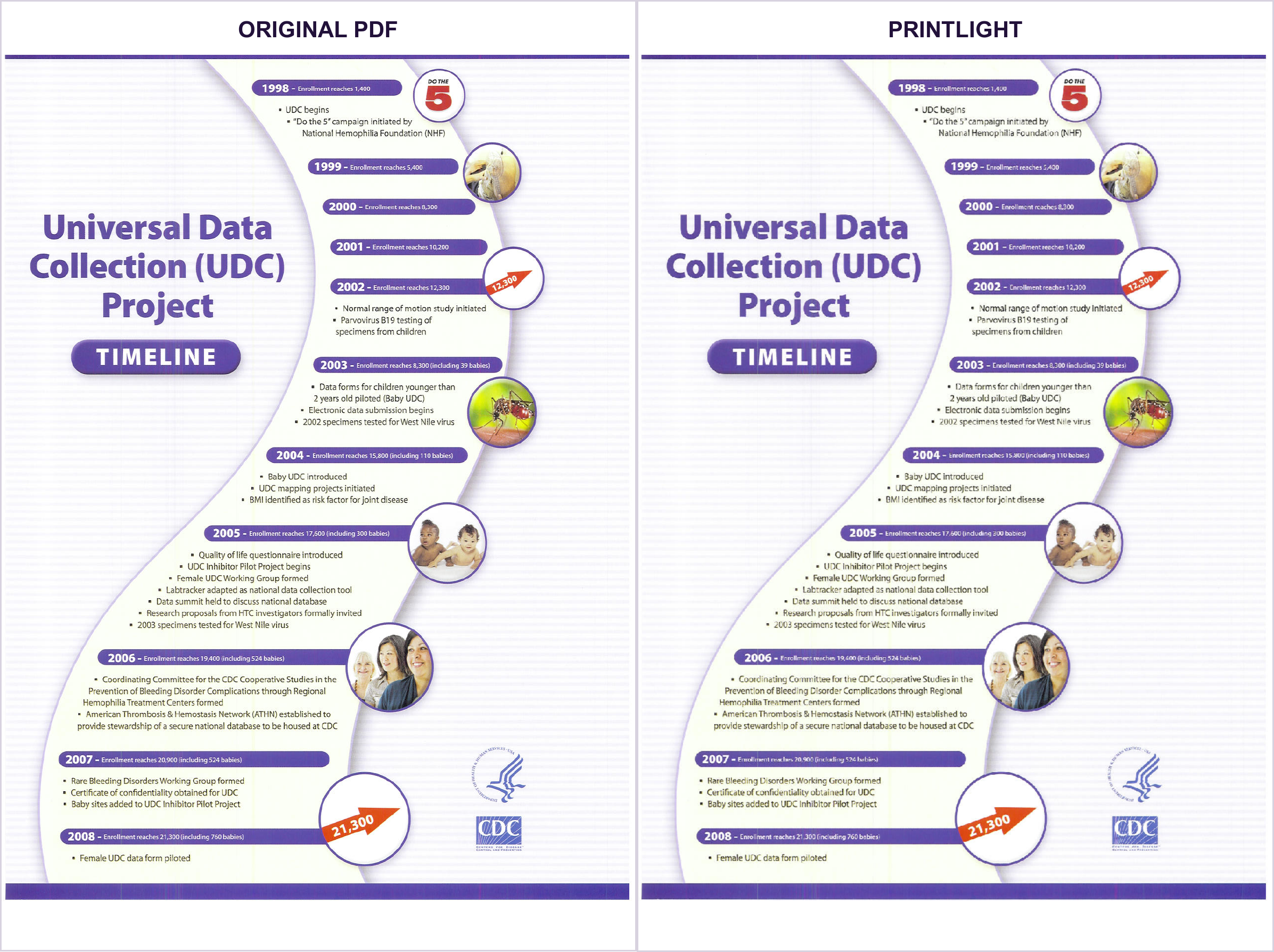
Example source: Universal Data Collection (UDC) Project Timeline (CDC), published in CDC STACKS and marked Public Domain. PrintLight output was produced from that PDF in the live app with automatic cleanup and “Omit large images” turned off.
Which control solves which scan problem?
Paper whitening
Targets a gray or yellow page tone that would otherwise print as coverage.
Brightness
Helps when the entire scan is dim, but too much can erase faint detail.
Black restoration
Strengthens text after the page background has been lightened.
A careful scan-cleanup sequence
- Preview a representative text-heavy page.
- Increase paper whitening in small steps.
- Adjust brightness only if the page remains too dim.
- Restore black text until body copy is comfortable to read.
- Check stamps, pencil notes, thin lines, signatures, and faint diagrams before downloading.
Important: an image-only scan is different from a PDF with live text. Aggressive whitening can remove faint marks that matter. Always compare the original and processed preview and keep the original file.
Can PrintLight reverse a negative-style scan?
Yes. Optional adjustments include a control for pages with light text on a dark background.
Does scan cleanup perform OCR?
PrintLight’s purpose here is a cleaner print copy. It does not promise to turn the scan into editable text.
Preview a cleaner scan
Upload one PDF or a whole batch, compare the original and lighter copy page by page, and download when the result works for you.
Try PrintLight PDF →